
It started out as a tool for tracking bugs in code to now become the backbone of teams’ work around the world. Introducing Jira, Atlassian’s groundbreaking product, which has been winning hearts and making enemies - from startups to large corporations - since 2002. In this article, we’ll cover everything you need to know to get started if this is your first time using this tool.
Basic terms
What is Jira? Easy explanation
Jira is a tool for managing tasks in a workflow - moving them from start to finish.
Sounds complicated? In reality, you can think of Jira as a very advanced to-do list or as a digital bulletin board with sticky notes.
You can assign people to each task, add details, attachments, and comments. All your work moves from emails, messages, or your own to-do lists to Jira. In one place, you can manage projects and teams, track tasks and bugs, and much more.
It’s easier to track work, visualize progress, and - at management levels - also check whether what we’re doing aligns with the company’s overall goals.
Who can use Jira?
- Jira is used by all types of companies - small startups with just a few employees as well as large corporations ranked among the world’s top companies.
- Jira is designed for all teams - developers, designers, marketing, legal, HR, sales, back office, and more. For help desk teams, there’s a separate tool: Jira Service Management. There are a few other products in the Jira product family, which we describe in the following section.
- Jira is customizable - it can be easy to use or much more complicated, depending on the number of users, projects, and configurations, but it should always be designed with end users in mind.
Jira is a project management tool that helps teams plan, manage and track their work. Jira helps you see the big picture, not just your own part of the work. That's why it makes it easier to collaborate within teams and across departments.
What business needs does Jira address?
- Product Development using an Agile approach
- Project management
- Agile at Scale
- Process organization
- Product development coordination
- Managing the tasks of teams and entire units
What are the main Jira features?
- Different types of view - you can navigate between them using the menu at the top
- List view - spreadsheet like view with columns and rows
- Kanban board - columns with movable sticky notes
- Calendar
- Timeline
- Reports
- Goals
- Highly customizable - you can tailor Jira to your needs and modify its features, including custom code. As Atlassian Partners, we often receive such requests and work with our clients to make their experience better.
- A wide range of integrations and marketplace apps, extending Jira capabilities.
- One platform with all Atlassian tools
- Commitment to safety standards, with the option of additional security features from Guard
- Ability to connect with assets
According to Atlassian, managing work in Jira helps your team be more transparent, efficient, and collaborative.
✔ Transparency: Everyone on your team can view and comment on your work. You don’t need to work in silos.
✔ Efficiency: Your team can plan ahead by breaking down big projects and knowing exactly when work will start and end.
✔ Collaboration: You can work closely with your teammates, organizing your discussions and decisions.
What is Jira Cloud?
Jira Cloud is currently the primary hosting of Jira. This means that Atlassian handles the entire IT infrastructure, and we can access the software through a web browser.
When Atlassian first released Jira in 2002, it was an “on-premise” version, meaning customers installed it themselves on their own hardware. Later, Server and Data Center versions became available, depending on a company’s needs.
Currently, the Server version is already end-of-life, and Atlassian recently announced that support for Data Center will end in 2028. This means that after that time, the only way to use Jira will be through the Cloud, though Atlassian has offered several different Cloud options.
Jira vs Jira Service Management and other products in Jira family
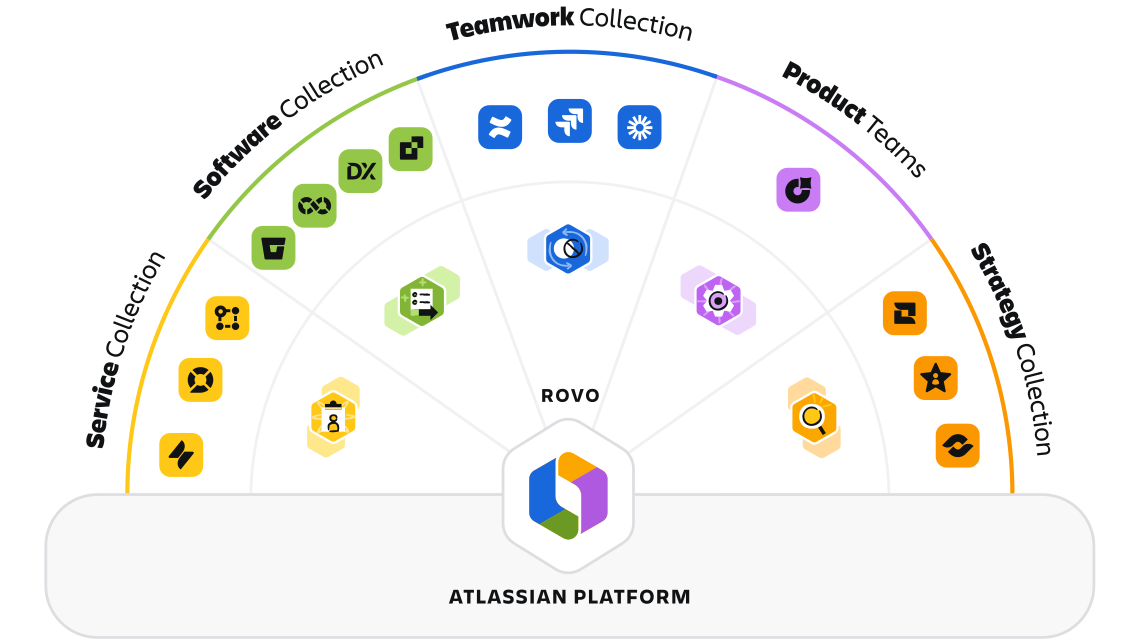
Paradoxically, the term 'Jira' can refer to different tools. Over the years, Atlassian’s product range has evolved to its current form of Collections.
Here are a few of the products that can be confusing:
Jira - the most popular Jira 😉 This is the tool we’re describing in this article.
Jira Service Management - An application for all tasks related to handling and resolving tickets and requests, such as service requests, help desk inquiries, etc.
Jira Align - One of the applications in the Strategy Collection, Align gives enterprises the visibility and control to connect strategic goals to the work teams do every day.
Jira Product Discovery - a solution for managing the creation of new products
Jira Software - the former name for Jira for developers. Now everyone works on a single Jira instance, regardless of their team.
Jira Work Management – the former name for Jira for business teams. As with Jira Software, JWM is now part of a single Jira instance.
Jira elements
What is an epic in Jira? The types of Jira work items (issues)
Work item
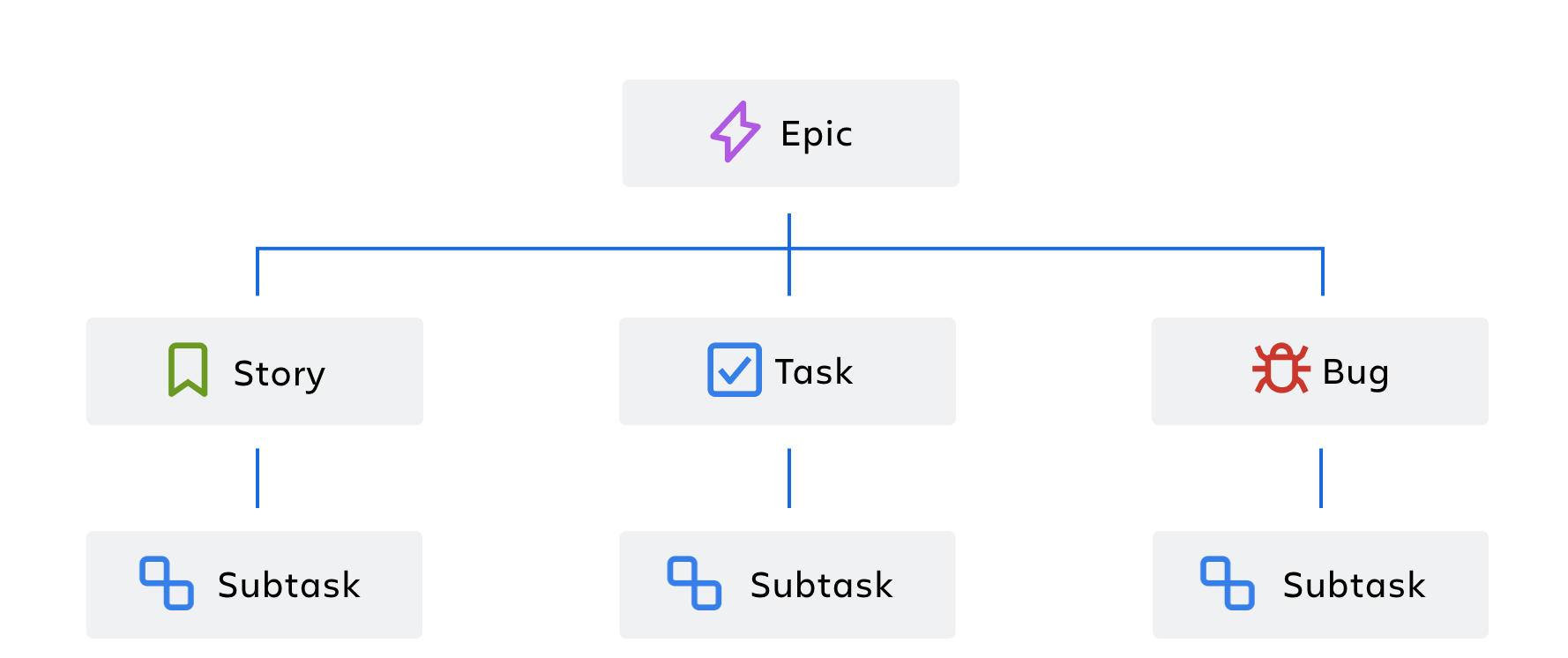
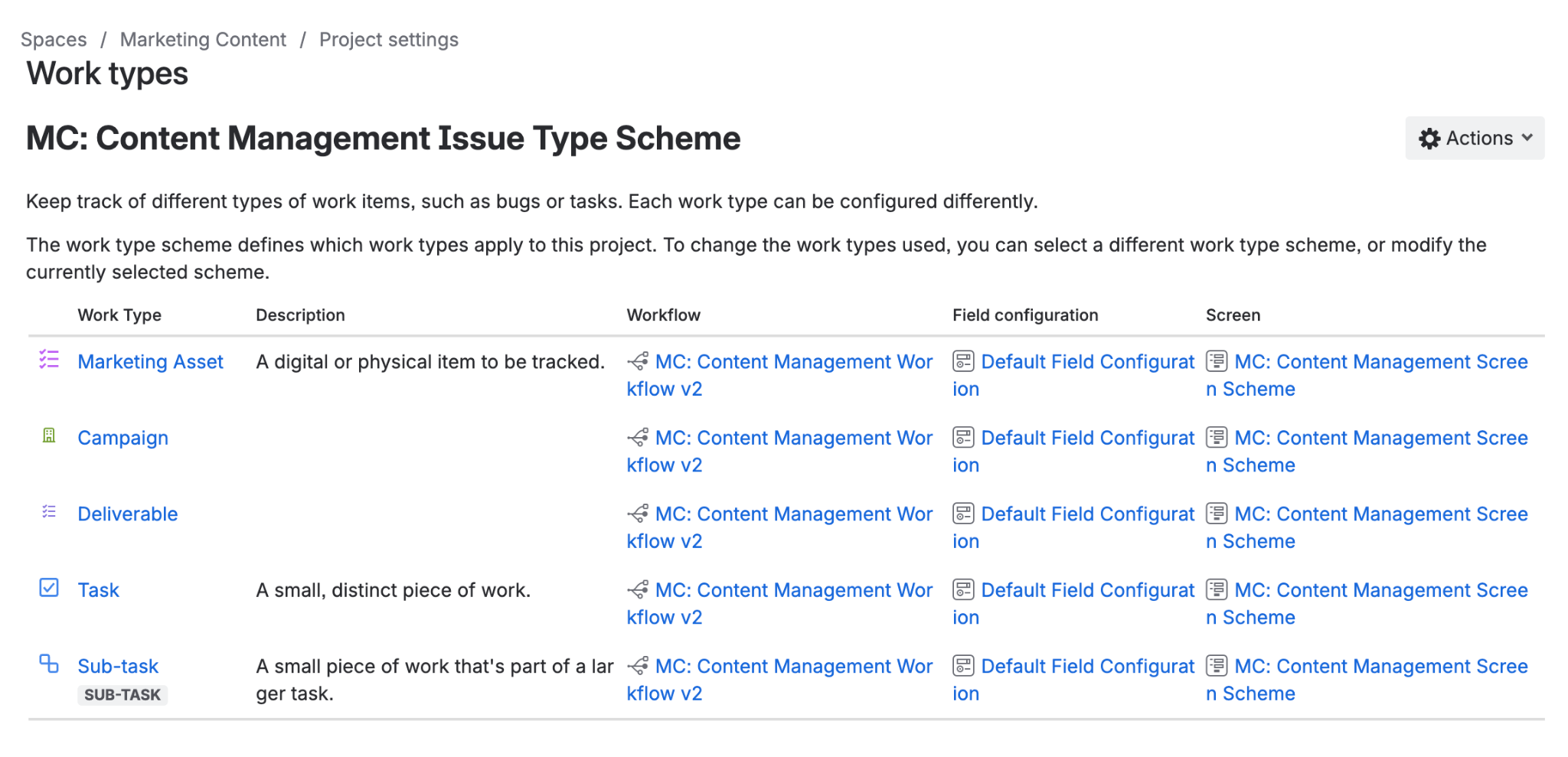
In Jira, individual pieces of work are called work items. In Jira Cloud, we have several predefined work item types. We can also add and define new ones as needed.
Here are the most common types:
- Epic - a large task that can be broken down into smaller ones.
- Story - in software development projects, this refers to a deliverable, such as a function to be implemented.
- Task - a regular task; it can be anything.
- Bug - a problem or error, most often in the code.
- Subtask - a smaller part of a given task. You can view a work item’s subtasks by opening the work item.
Stories, tasks, and bugs appear both in the backlog and on your board. Epics appear in the Epics panel of the backlog.
Backlog
A list of planned tasks for a project. For example, developers use a backlog to record all planned changes to the application. The backlog view is visible when we have a Scrum project.
Space
A space is a collection of related work items. In Jira, every work item belongs to a space. Space keys are short versions of the space name that identify the work items in that space.
Board
A board is a visualization of the work in a space. Boards have columns with work items in them. Boards belong to spaces. A single Jira space can have several boards, depending on its configuration.
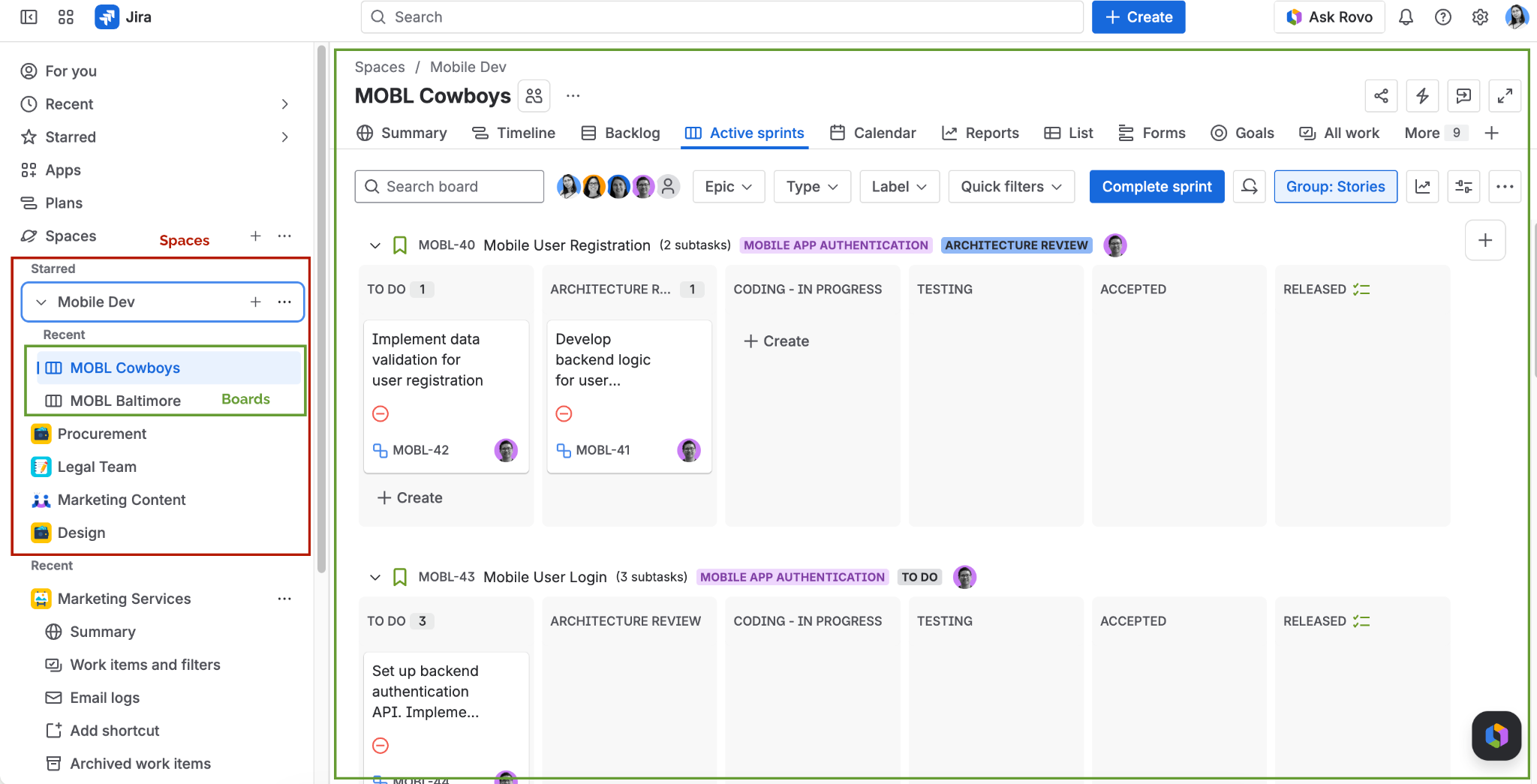
The screenshot shows an example of a Scrum project.
You can create new tasks from anywhere within Atlassian tools and third-party integrations - for example, in Confluence, in the mobile app, in Slack, or via email.
Fields and custom fields
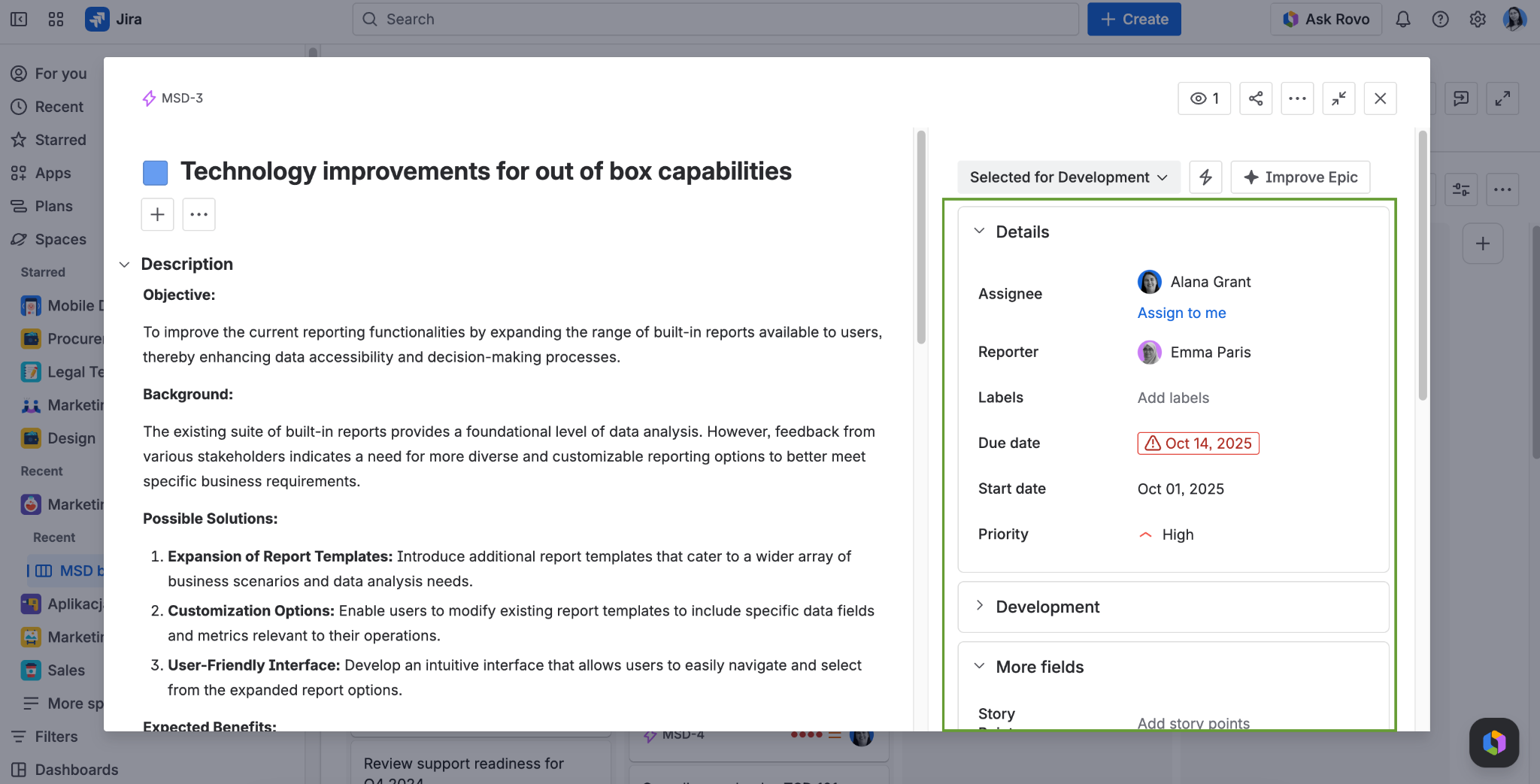
Fields are places where you enter information in work items (tasks) in Jira.
Custom fields are additional fields you can add to the screens to gather more data.
Jira project vs space - what’s the difference?
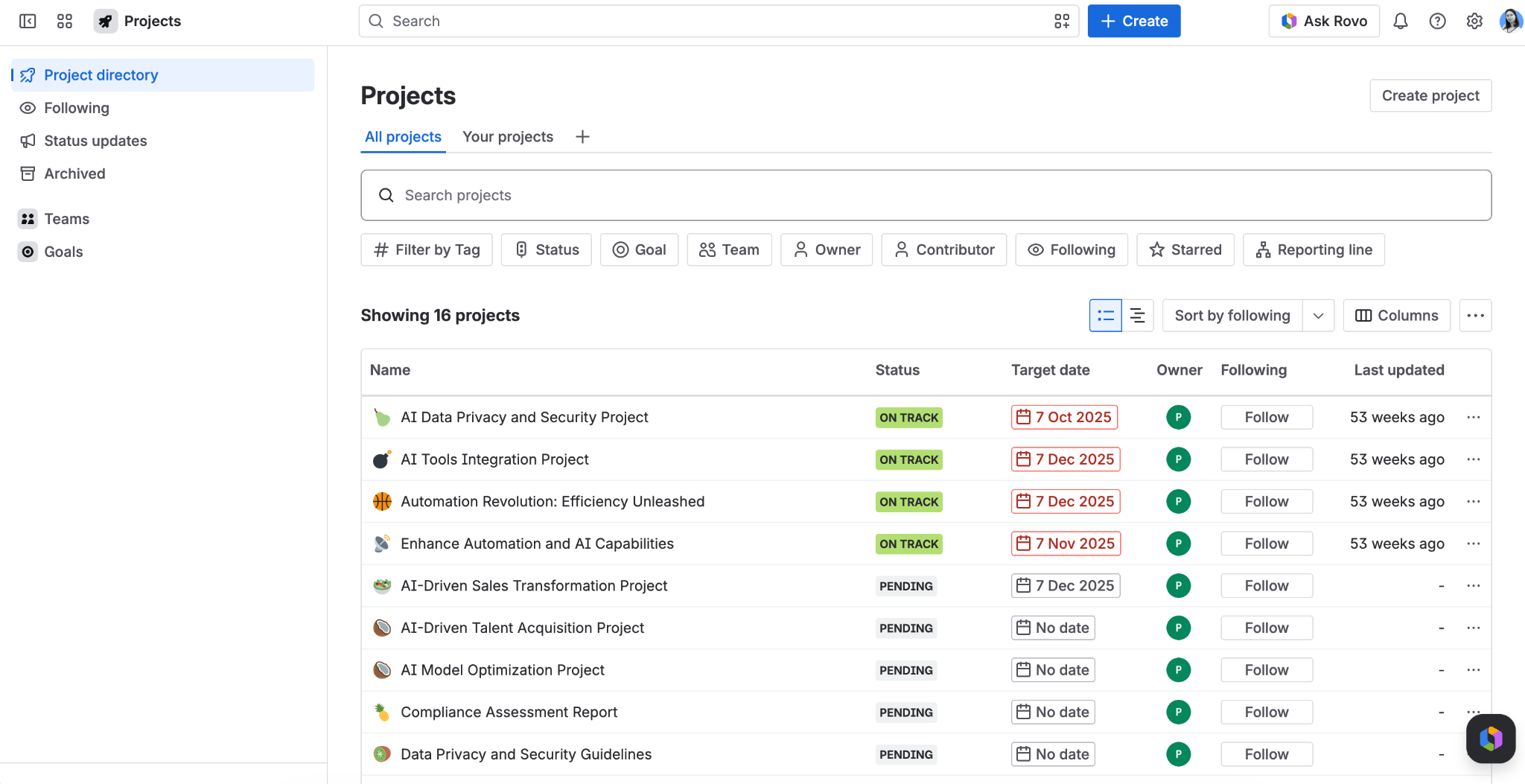
In Jira, the term “project” has been replaced by “space” in 2025. A Jira space is a collection of related work items that helps your team organize, track, and manage work. Therefore, from this point on in the article, we will refer to projects as spaces.
Currently, “projects” refer to something else - a cross-team initiative available now in Atlassian Home. It gathers all related regular updates, timelines, and progress in one place, consolidating all information.
Types of Jira boards
There are two types of boards in Jira.
The first one is a Kanban board, which is a tool used to represent ongoing work that doesn't have fixed stopping points or deadlines. When one task is finished, the next one starts straight away. It's best for projects where requests come in all the time and need to be dealt with straight away (like IT support or ongoing maintenance).
The other one is Scrum boards, where work is broken down into small, timed blocks called "sprints" (usually lasting two weeks). The team chooses a specific bundle of tasks, locks them in for that two-week period, and focuses strictly on finishing that exact bundle before the time runs out. Once the two weeks are up, they reset and plan the next block.
Once the sprint is over, Jira will let you choose where you want to move your unfinished tasks - for example, to the backlog, to the next scheduled sprint, or to a new sprint.
Jira supported methodologies
Jira strongly supports a wide range of methodologies, as well as sets of practices such as Agile and DevOps:
- Scrum - perfect for working in sprints, ready-made template available in Jira
- Kanban - best for continuous flow, ready-made template available in Jira
- Scrumban - a hybrid of the two above
- Waterfall - for non-agile / hybrid teams
- OKR - for linking work to goals (especially using Goals in Jira)
For large organizations, Jira also supports Agile scaling frameworks - such as SAFe, LeSS, Nexus, and Scrum at Scale - usually through additional apps from the Marketplace or Jira Align.
Jira Workflows
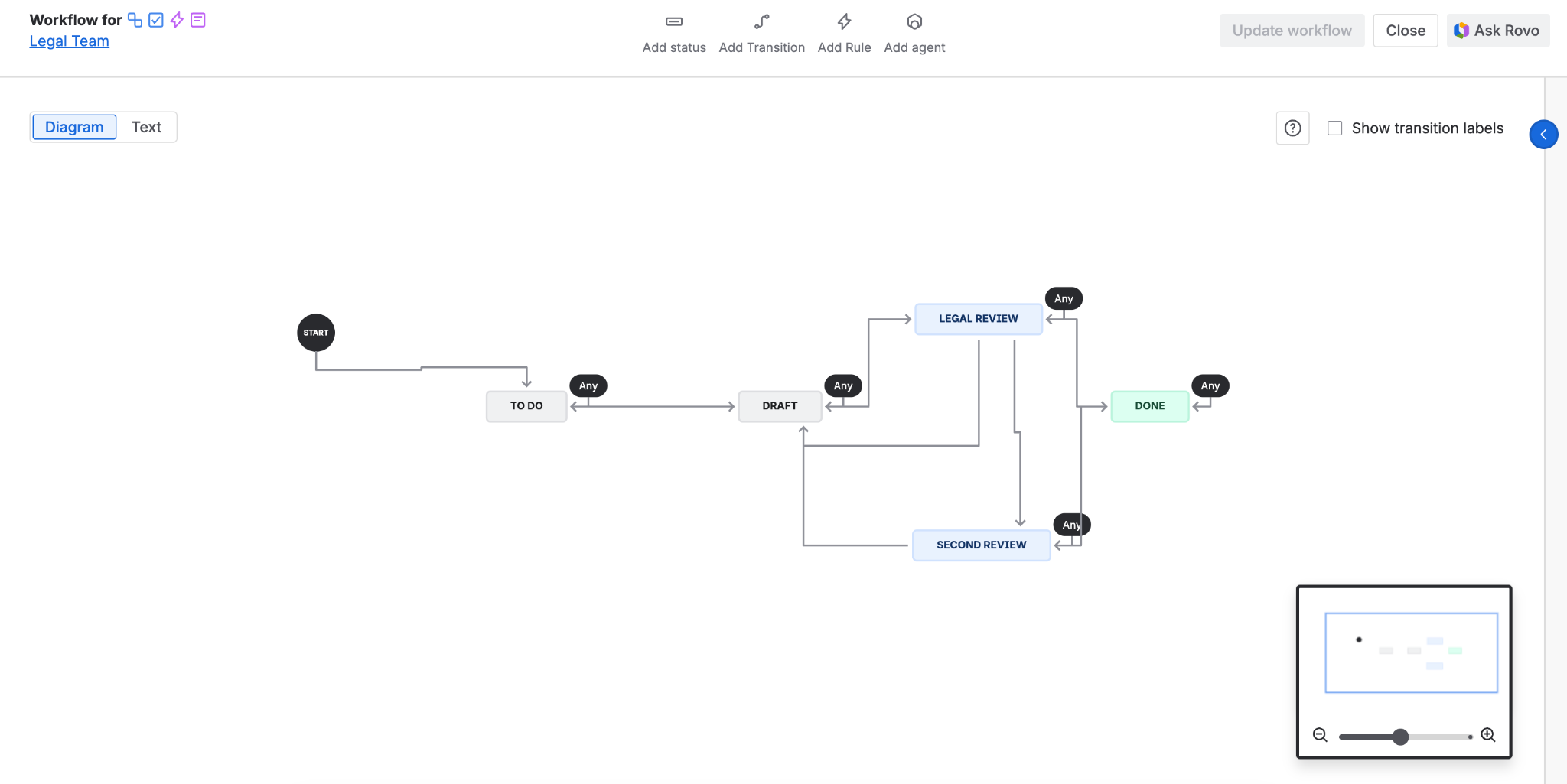
A workflow is the step-by-step path that a work item follows from the moment it is created until it is completely finished. It is a visual map of your team's actual work process. They can vary greatly depending on the project, location, configuration, etc.
Every workflow is made up of just two things:
- Statuses (The States): These represent where the task is at a specific moment in time.
- Examples: "To Do," "In Progress," "Under Review," or "Done."
- Transitions (The Actions): These are the links or pathways that allow a task to move from one status to another.
- Examples: Clicking a button to move a task from "To Do" into "In Progress."
We've written more about workflows and automations in this article.
What is the difference between company-based and team-based space (in the past - projects)?
Jira is flexible when it comes to team size - it supports small companies and huge enterprises with thousands of users.
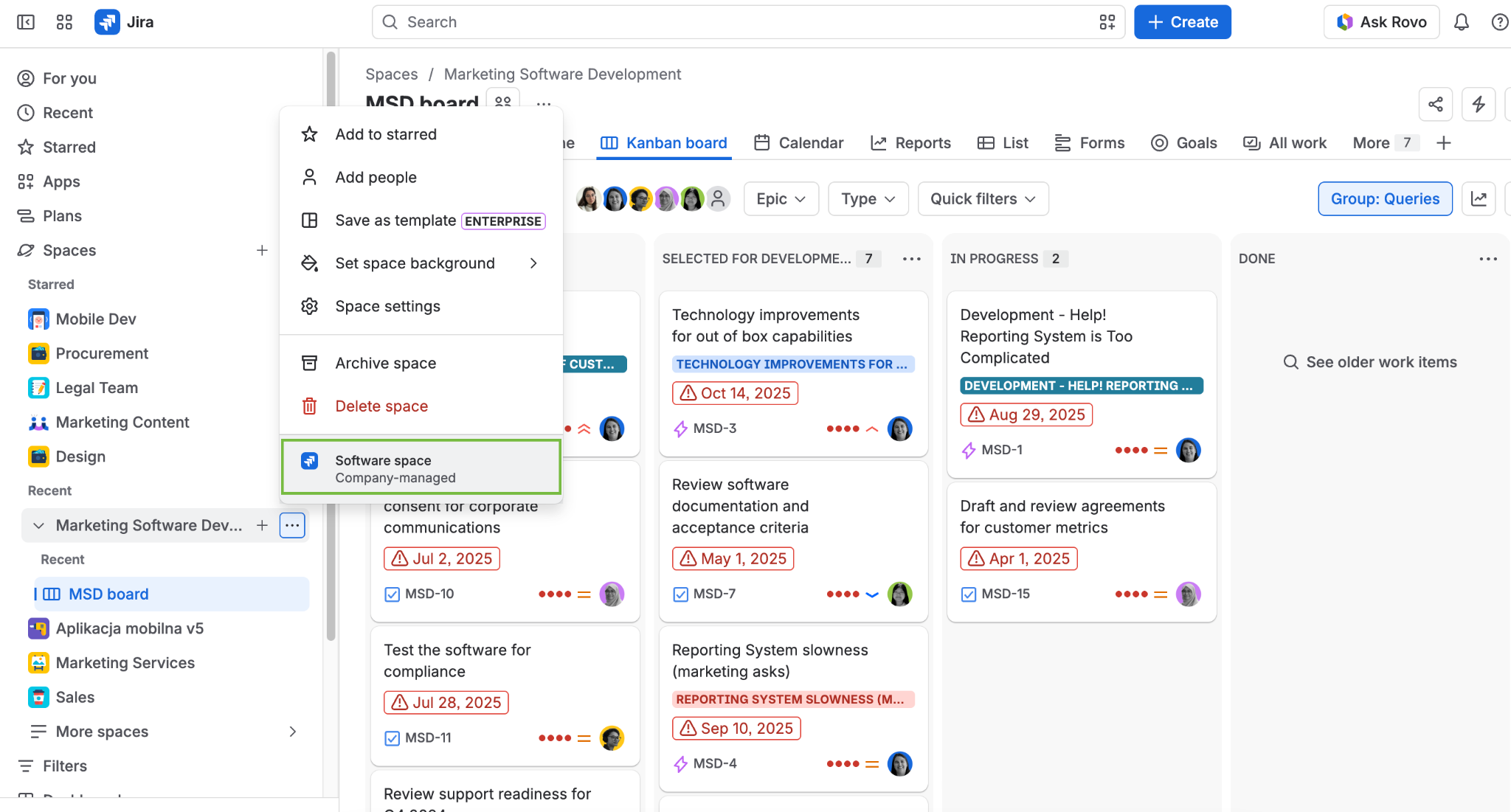
Company managed spaces are managed by administrators. They are usually used when spaces can be easily misconfigured, for example with many users involved. Only Jira admins can create these and they use standardized configuration.
Team-managed spaces refers to spaces that are 100% handled by the team, not a dedicated administrator. These spaces are intuitive, simple to set up, and allow you to start quickly. The team controls them and makes changes to them that do not affect other spaces.
Users and permissions in Jira
In Jira, a user is any individual who can log into your Jira instance and counts towards your Jira license. The actions a user can perform (e.g., whether they can delete their own tasks) depend on the permissions granted by the administrator and type of space. A group refers to a collection of users who share the same global permissions.
Jira administrators are users who administer a given space in a Jira application. A space administrator is someone who has the space-specific 'Administer Space' permission, but not necessarily the global 'Jira Administrator' permission.
Permission schemes allow admins to define what users can do within a space, as opposed to global permissions which define what users can do across the entire site.
- Global permissions are system wide and are granted to groups of users.
- Space permissions are created within permission schemes, which are then assigned to specific spaces.
- Work item permissions are created within permission schemes, which are then assigned to specific spaces.
What is the timeline view and Plans (advanced roadmaps)?
In this subsection, we'll discuss different ways to create timelines in Jira.
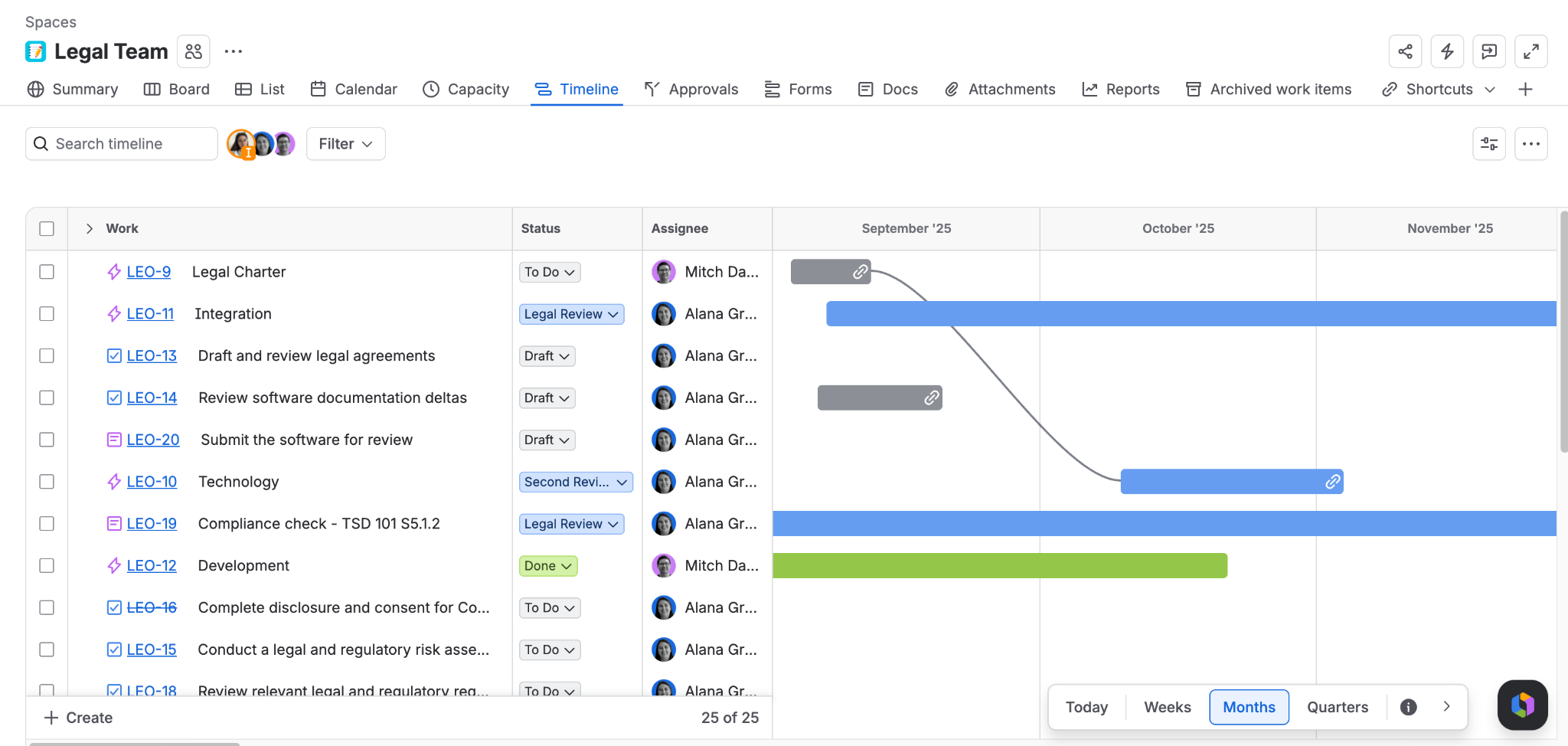
The Free and Standard plans include a native timeline view, but without advanced features. This view helps you to visualise the timing, duration and dependencies of work items in your space. It provides an overview of the status of your work, making it ideal for sharing progress with others.
This feature has at least one important limitation: it can display tasks from only one space. To visualise cross-space dependencies, you need at least the Premium tier. To start using the Timeline feature, open your space and select 'Timeline' from the space navigation menu.
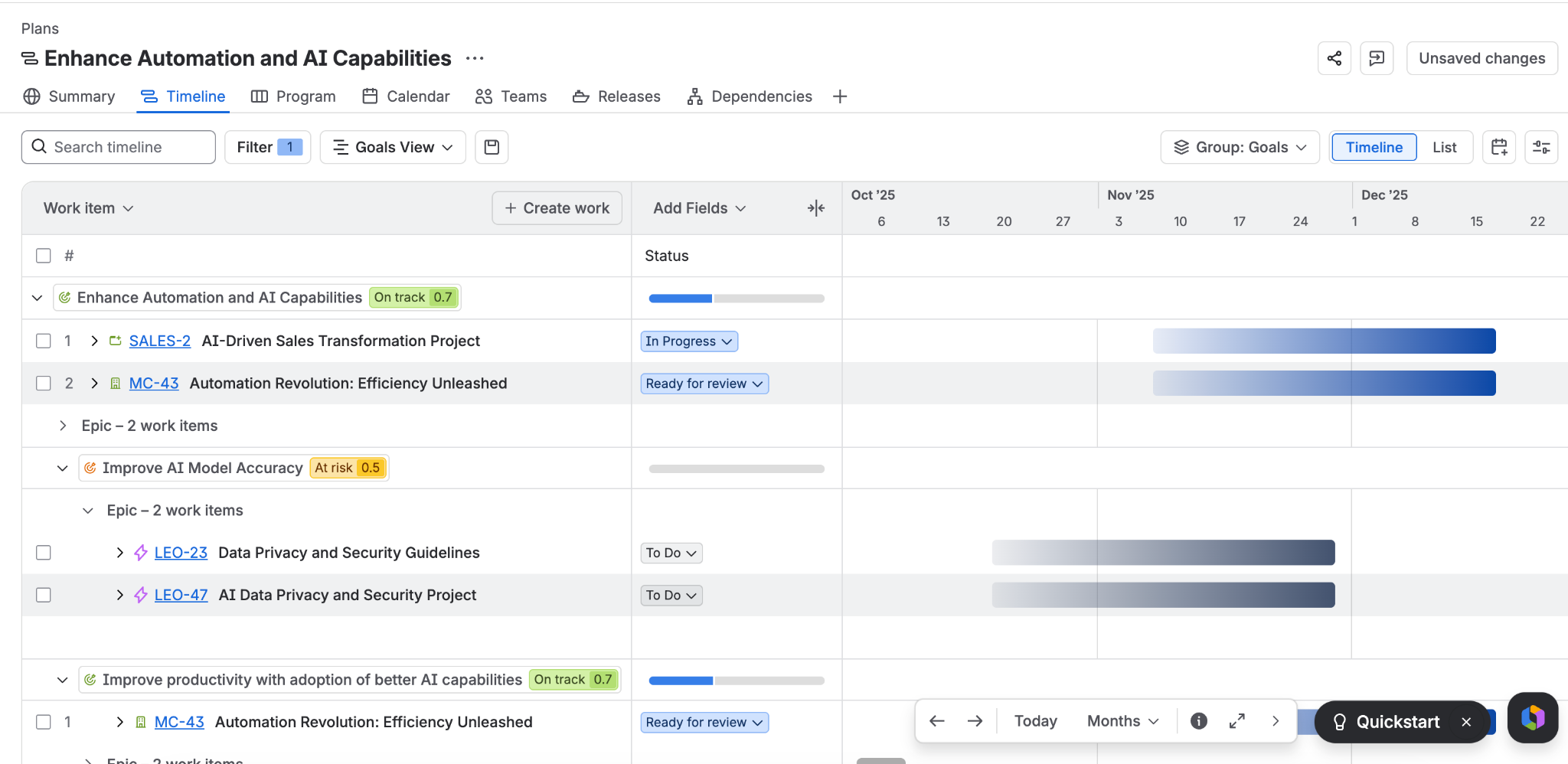
The Plans feature (formerly Advanced Roadmaps) supports forecasts, estimates, and reports at the global level for Jira Premium and Jira Enterprise customers. It pulls work from multiple projects and boards into a single project timeline, with added features for capacity management, scenario modeling, and cross-team dependencies.
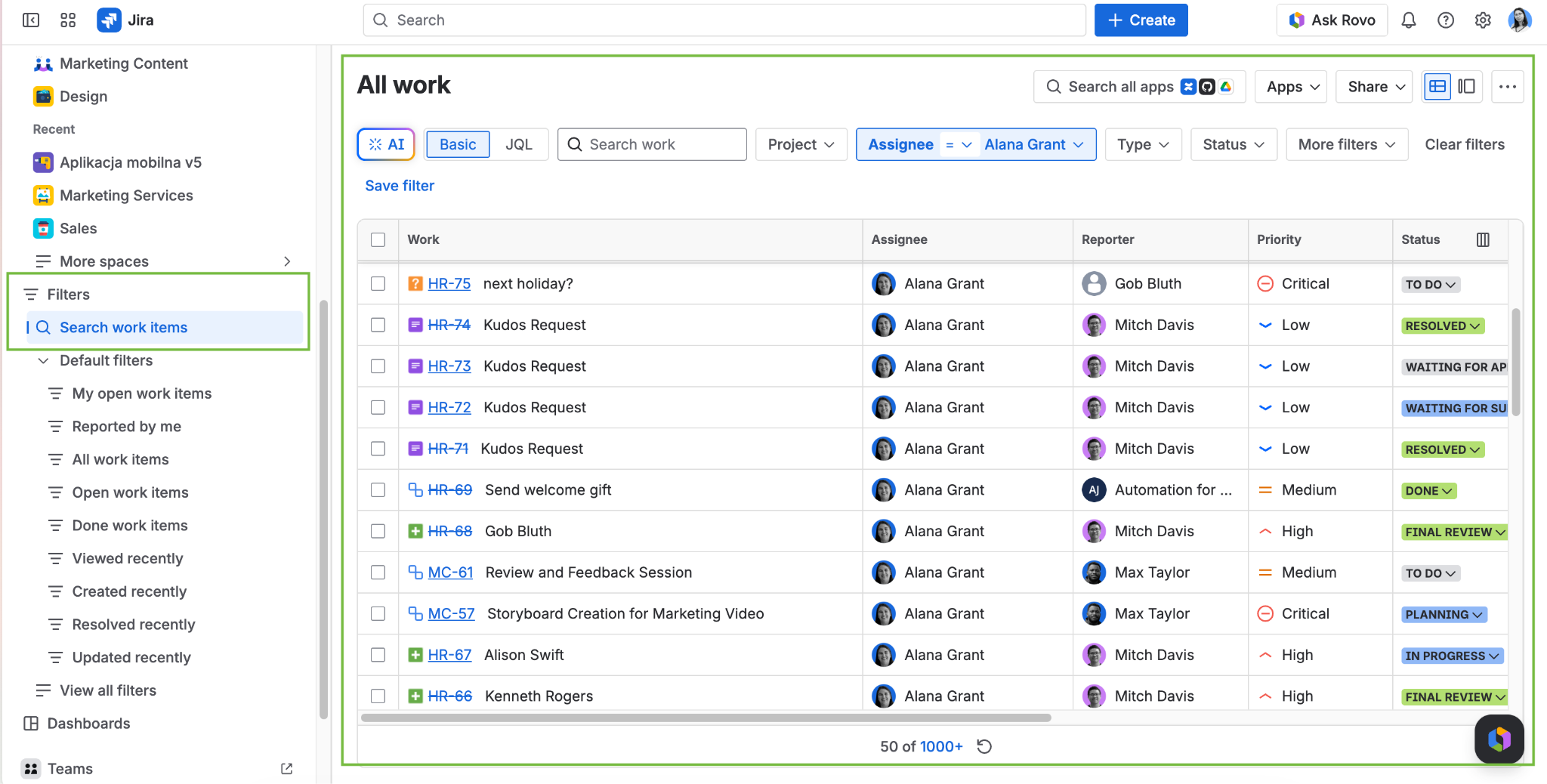
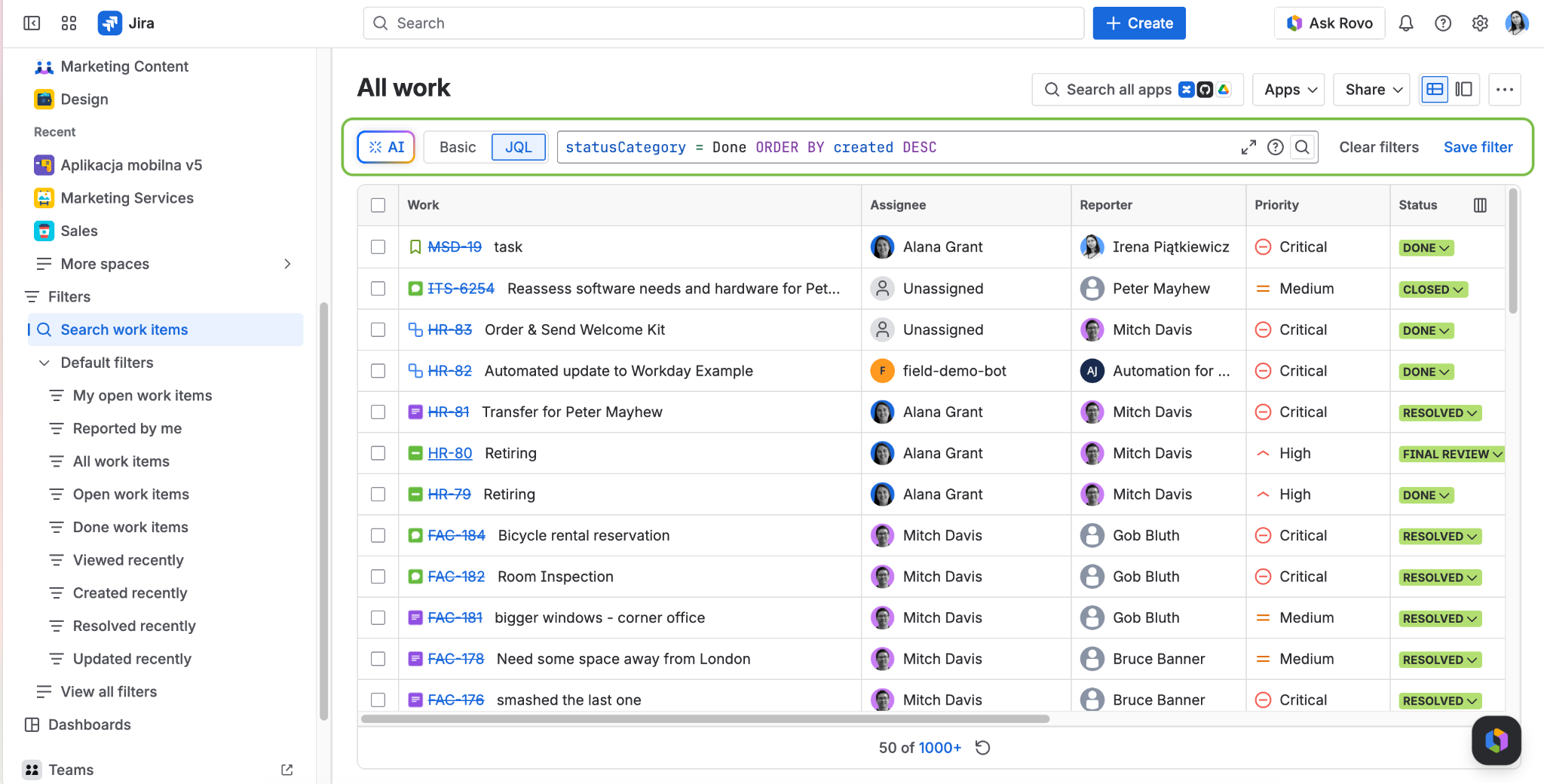
JQL (Jira Query Language) - advanced search features
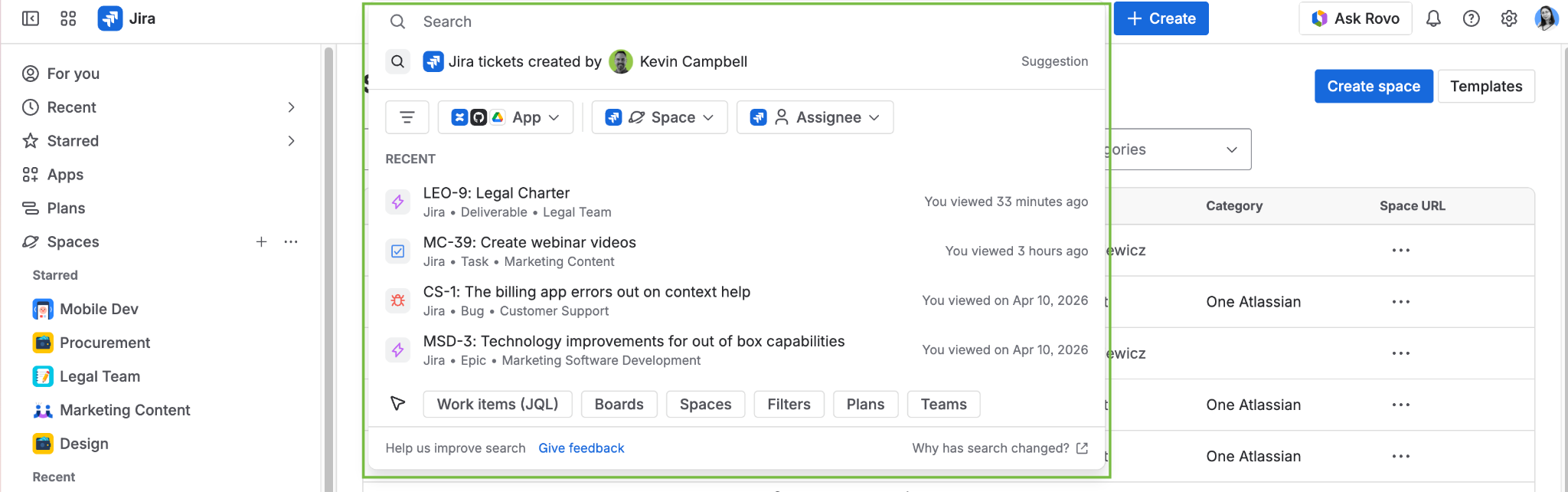
Jira offers three main ways to locate your information: you can use basic search to find work items by filtering through simple dropdown menus, or use the top search bar to quickly search for spaces and boards. For more advanced needs, JQL (Jira Query Language) search allows you to find work items using precise queries; you can even use Jira Rovo to generate these queries using everyday, natural language or to automatically analyze errors in your code.
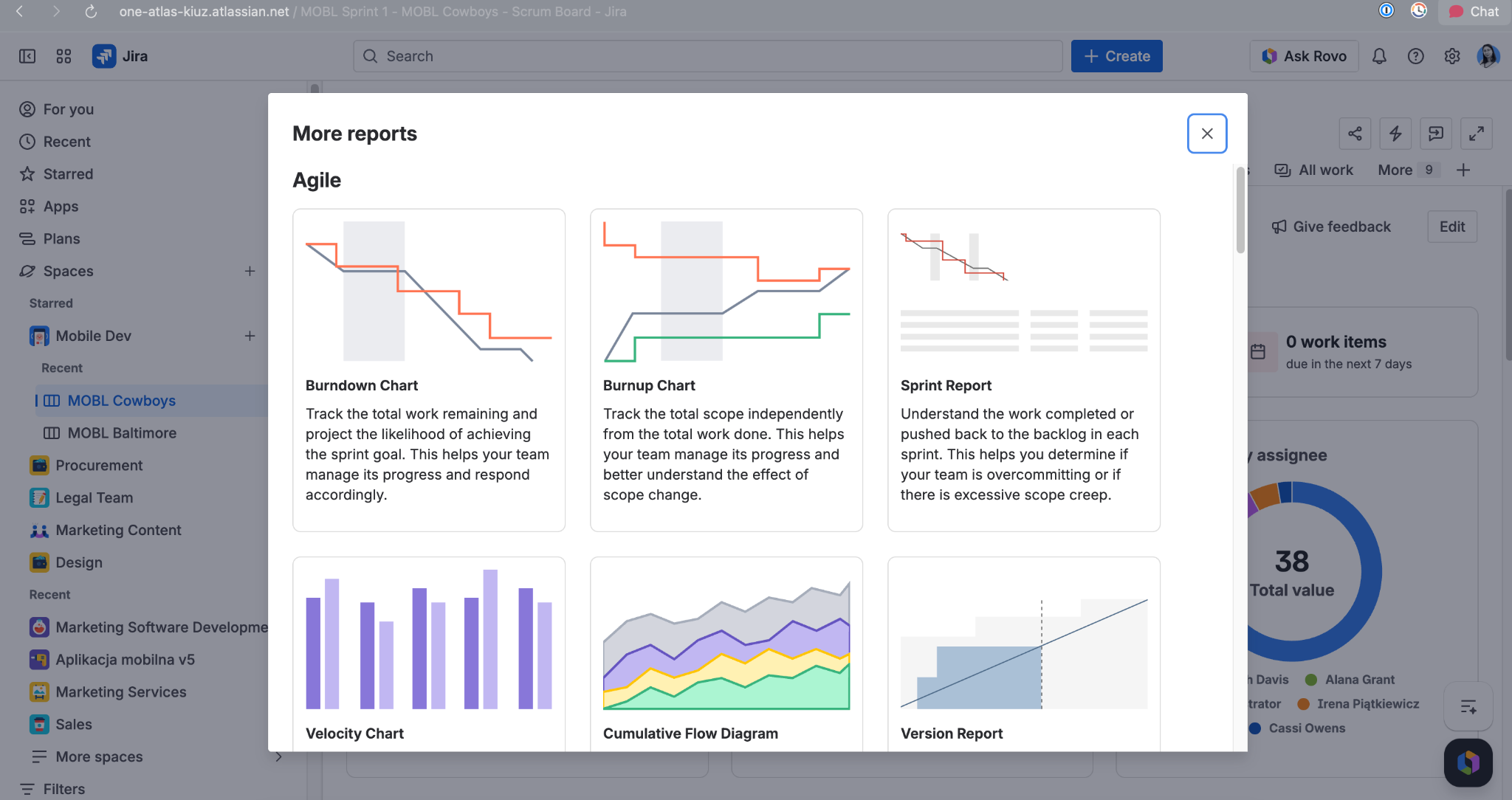
Reports
In Jira, you can find several types of built-in reports, as well as general summaries of the tasks by status.
How to get started?
Implementing Jira
It’s a good idea to start implementing Jira Cloud with the free version available on the website so you can take your time testing its capabilities. When rolling out the system within a company, it’s best to start with a single, selected department, and official Solution Partners can assist with the entire configuration and optimization process.
In this article, we've answered a few often asked questions related to the implementation process.
.png)
Jira advantages - why do teams use Jira?
- All information in one place
- Even when someone is absent or leaves the company, the information remains
- You can see work progress and bottlenecks on a single board - get the big picture
- Cross-team and remote collaboration
- Easier budgeting and project timeline forecasting
- Align work to goals
- Manage dependencies - Connect engineering, product, and marketing initiatives to coordinate big launches across every team.
Jira licensing
In Jira, there are four license tiers that provide specific features for users and are often based on the number of users. Payment can be made monthly or annually. You can find more detailed information about Atlassian licenses in our blog article here.
Jira free - Best to choose when you are just getting started in a small team
- Up to 10 users (or 3 agents for Jira Service Management)
- 2 GB of file storage
- Deactivated after 120 days of inactivity
Jira Standard - If you need standard features for more users
- Up to 100,000 users for Jira (20,000 agents, unlimited customers for Jira Service Management)
- 250 GB of file storage
- Advanced permissions, roles, and permission sharing between company-managed spaces
- Data residency option - determine where to host content and data
- Standard Support (local business hours 9-5 support)
Jira Premium - More storage, more advanced project tracking features
- Unlimited file storage
- Premium dedicated Atlassian 24/7 support
- 99.9% uptime service level agreement (SLA)
- Advanced roadmaps - track multiple projects across different teams
- Sandboxes
- Release tracks - control when updates happen
Enterprise - For enterprises with global scale, security, and governance needs
- Give users access to multiple Jira Enterprise products (up to 150) and only pay for each user once
- Get our 99.95% uptime service level agreement (SLA)
- Available upon contacting Atlassian
Summary
Jira is a tool that helps teams organize and track their work in one place. It’s like a smart, shared to-do list or a digital board full of sticky notes. Instead of scattering tasks across emails, chats, and personal lists, everything lives in Jira - where you can assign people, add details, and follow each task from start to finish.
Why do teams love it? Everything stays in one place, progress is easy to see, work stays visible even when someone’s away, and it’s easier to spot bottlenecks and connect daily tasks to bigger company goals.
If you want to get started with Jira, we are here to help. Please contact us via e-mail or form on our website.

Sources:
https://www.atlassian.com/software/jira/features
https://www.atlassian.com/software/jira/guides/permissions/overview#what-are-project-roles
https://support.atlassian.com/jira-software-cloud/docs/manage-and-administer-team-managed-projects/

Marketing and creativity fairy, responsible for branding, content creation, and promoting our services. With an academic background in cybersecurity and a passion for marketing, she combines the best of both worlds. If you're looking for a conversation starter, Canva designs and good books are always great topics with her!
%20(1).png)
Wojciech helps organizations make Atlassian solutions work for them, not the other way around. He’s always believed that great implementations need more than configuration - the right approach, clear standards, and a strong delivery environment. Outside of work, he describes himself as a fan of all kinds of boarding (snowboarding, surfing, skateboarding, etc.). He also enjoys mountain biking and travelling to lesser-known places with very different cultures.

Simplify tasks and teamwork with Atlassian

Unlock business growth with Salesforce

Transform your data into smart decisions with Splunk

.png)
.png)
